| Welcome to my blog!

Meet the Author

Roshan is an undergarduate student in Information and Communication Technologies from Vavuniya Campus of the University of Jaffna.He is very much interesting on IT related Topics and the technical stuffs.Roshan is also a creative mind with lots of ideas and potential writter..!

Subscribe to this blog!

Receive the latest posts by email. Just enter your email below if you want to subscribe!

Showing posts with label themes. Show all posts

Sunday, January 4, 2015

How to create your own theme for Google Chrome Web Browser


Its really easy to create a simple theme in Google Chrome! Google’s Chrome Web Store offers a variety of themes for Chrome, which include background images for your new tab page and custom colors.
There is a official Google app which allows you to create a custom Google theme quickly and easily!
You can even share the themes you create.

Getting Started

First grab the My Chrome Theme app from Google.install it from the Chrome Web Store. It will appear on your new tab page, where your other installed Chrome apps do.


Choosing an Image

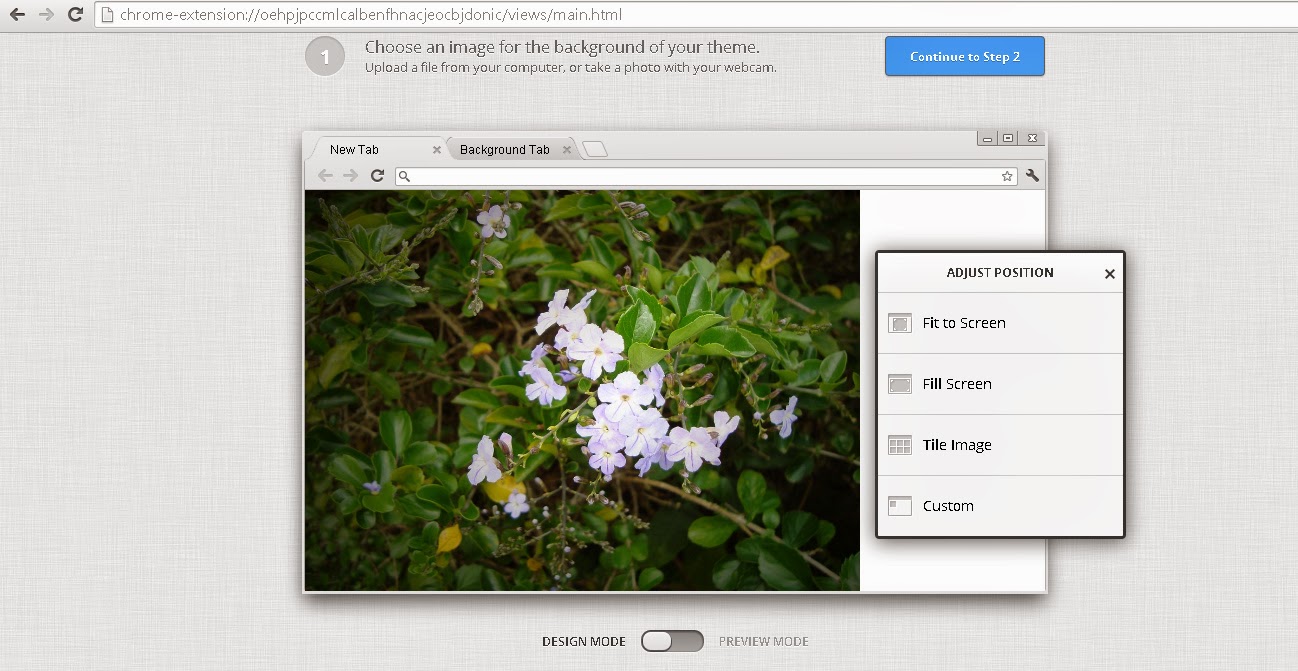
You can either upload an image file or capture an image from your webcam.choose an image and you can check how it looks like when it applied!


You can upload your own creation or a graphic or a photo or any one from another source.and you can add effects and resize the image and some editing through the App


Adding Colors

On the next screen, you’ll be able to choose separate colors for the frame, toolbar, and background color. Of course, this is a Google app, so there’s an “I’m feeling lucky” button that will automatically select some appropriate-looking colors for you. The automatically selected colors will attempt to match the background image you selected earlier.


Installing and sharing Your Theme

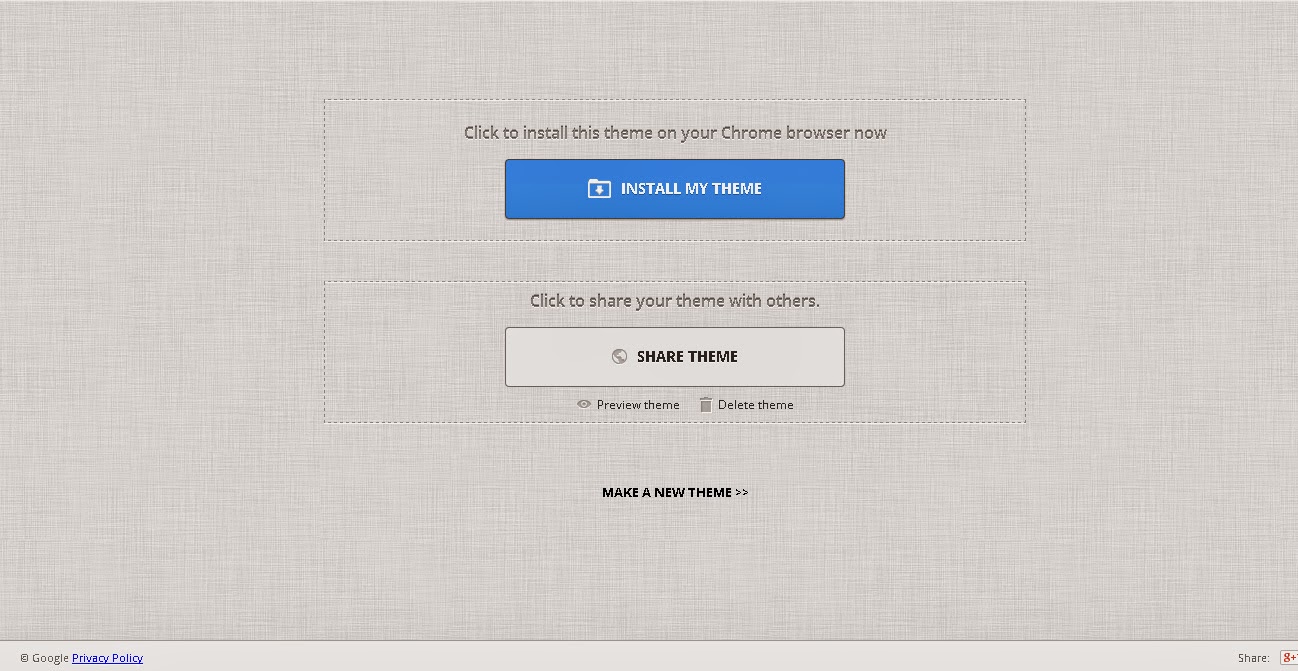
After you finished you will have an option to install your theme to your browser and share it with your friends!for sharing you'll get a link and you can share it with your friends through Google+, Facebook or using any other media you like!


Friday, January 2, 2015

Firefox theme එකක් ලේසියෙන් හදමුද?

මේක හරිම easy වැඩක්! අපි කරන්න හදන්නේ අපේම පින්තූරයක් භාවිතා කරලා Firefox themes හදන එක.මේක පුංචිම දෙයක් ඇත්තටම ලස්සනට ගොඩක් මහන්සිවෙලා මේ වැඩේ කරන්නත් පුලුවන් අද අපි පුංචිම තැනින් පටන් ගමු.Firefox themes එහෙම නැතිනම් “personas” වලට පුලුවන් ඔයාගේ browser එක ඔයාටම ඕන විදිහට වෙනස් කරන්න.
හරි වැඩේට යමු.Chrome වල මේ වැඩේ කරන්න කැමති අය මෙතනට යන්න.. Chrome theme එකක් ලේසියෙන් හදමුද?

ඉමේජ් එක සකසා ගැනීම

සරලම ෆයර් ෆොක්ස් theme එකේ images දෙකක් තියෙනවා.අපි කියමුකෝ ප්‍රධාන රූපය එහෙම නැතිනම්  header image එක තමා උඩ කොටස ආවරණය කරන්නේ.ඊලගට footer image එක පහල කොටසට නමුත් අලුත් ෆයර් ෆොක්ස් සංස්කරණ වල මෙම කොටස එච්චර භාවිතයක් නැති නිසා මේ රූපය අවශ්‍යම නෑ.
මේ විදිහට හදපු themes බලන්න මෙතනින්.
මුලින්ම ඔයා කැමති ලස්සන රූපයක්  දෙකක් හොයාගන්න පොඩ්ඩක් හිතල මේ තේරීම කරගන්න.මොසිල්ලා නම් කියන්නේ “Subtle, soft contrast images and gradients work best; highly detailed images will compete with the browser UI.” කියලා.මේකයි අපි මේ රූපය යොදන තැන ගැන හිතන්න ගොඩක්ම අපේ බ්‍රවුසර් එකේ දකුණු පැත්තනේ හිස් ඒ කියන්නේ රූපයේ ගොඩක් දකුණු පැත්තට ලස්සනට තිබ්බොත් නියමයිනේ.මේකට ඔයා යොදා ගන්න රූප දෙකට පහත අවශ්‍යතා තියෙන්න ඕන.

  • Header Image: 3000 pixels wide x 200 pixels tall, PNG or JPG format, 300 KB maximum file size
  • Footer Image: 3000 pixels wide x 100 pixels tall, PNG or JPG format, 300 KB maximum file size
ඔයාට පුලුවන් ‍මේ අවශ්‍යතා වලට ගැලපෙන රූපයක් යොදාගන්න එහෙම නැතිනම් ඔයාම එකක් නිර්මාණය කරලා යොදාගන්න දැන් ගොඩක් මෘදුකාංග තියනවා ඔයාට මේ සඳහා පාවිච්චි කරන්න පුලුවන්!ඔයාට පුලුවනි ඔන නම් රූපයක් තොරාගෙන අදාල මිනුම් වලට crop කරගන්නත්!


හදපු theme එක කොහොමද බලමු..

මේකට ඉතාම පහසු ක්‍රමයක් තියෙනවා.ඔයාට මේ සඳහා පොඩි එක්ස්ටෙන්ෂන් එකක් භාගත කරගන්න වෙනවා ඔයාගේ බ්‍රවුසර් එකට! මේක official extension එකක්!( Personas Plus extension.) දැන් browser එක restart කරන්න දැන් ඔයාට පෙනේවි ඔයාගේ toolbar එකේ දකුණු පැත්තේ පොඩි icon එකක්( පොඩි නරියෙක් ඔන්න! :p ) ඒක click කරල Preferences තොරන්න. “Enable custom personas” check box එක තෝරලා OK කරන්න.


ඊට පස්සේ  icon එක click කරලා custom Persona තොරලා Edit click කරන්න.දැන් ඔයාට වින්ඩෝ එකක් දකින්න පුලුවන් වෙයි ඔයාගේ theme එකට අදාල රූප, පාට,නමක් තෝරන්න තියෙන! ඉතින් මෙතනින් අදාල දේවල් තෝරන කොට ඔයාගේ browser එක වෙනස් වෙලා අදාල වෙනස් කම පෙන්නාවි.දැන් ok කලාම මේ theme එක ඔයාගේ browser එකට apply වෙනවා.
.

මේ theme ඕනෑම මෙහෙයුම් පද්ධතියක වැඩකරනවා.(Firefox on Windows, Linux, or Mac OS X.)

අපේ Theme එක ලොකේටම දෙමුද?

මේ වැඩේ හරිම ලෙසියි! ඔයා හදපු theme එක හැමෝටම පාවිච්චි කරන්න දෙන්න ඔයා කැමතිනම් කරන්න තියෙන්නේ එක Mozilla add-ons gallery website එකට ඇතුල් කරන එක.මේ සඳහා ඔයාට developer account එකක් ඕන.මේක නොමිලේ හදන්න පුලුවන්!ඔයා මේකට theme එක ඇතුලත් කරාම ලොකයේ Mozilla පාවිච්චි කරන හැමොටම කැමතිනම් ඔයාගෙ theme එක පාවිච්චි කරලා බලන්න පුලුවනි.rate කරන්න පුලුවනි  Mozilla add-ons gallery website එක හරහා.මේ සඳහා මේ සබැඳියෙන් යන්න.

How To Create a Simple Theme for your Firefox Browser..

Its easy to create Firefox themes by adding your own images.If you capable enough there are very advance theme making tools also.Firefox themes — also known as “personas” — can change the way your browser looks, making it more personal.
This isn’t too hard — all you need to do is find a background image or two and crop them to the correct proportions. Chrome users can check How to create simple themes for your Chrome Browser...

Get Your Images Ready

A simple firefox theme consists two images.The header image is behind everything at the top of the Firefox window, and the footer image is behind the Find and add-on bars at the bottom of the window. The latest versions of Firefox remove the add-ons bar unless you install an extension to bring it back, so the top image is much more important. You’ll only see the bottom image when you press Ctrl+F to use the Find toolbar.
You can find pre-made firefox themes from here.
First, choose a nice image that will work well on your top toolbar. Mozilla advises that “Subtle, soft contrast images and gradients work best; highly detailed images will compete with the browser UI.” the top right is the most visible part so its better to choose an image considering that fact. As you resize the browser window, more of the left side of the image will become visible.
These are the Sizes of the images you need

  • Header Image: 3000 pixels wide x 200 pixels tall, PNG or JPG format, 300 KB maximum file size
  • Footer Image: 3000 pixels wide x 100 pixels tall, PNG or JPG format, 300 KB maximum file size
Its better to find an image which suffice those requirements.BTW why not try your skills and do some Photoshop to create the image :). Anyway its up to you to design it!Or get a normal image and crop it using PhotoshopPixlr or any other software according to requirements mentioned!

You’d then crop your image — select Image > Crop in Pixlr — and you’d end up with a correctly sized image. You can now save it to your computer (File > Save in Pixlr). Repeat this process if you want a footer image, but make sure it’s only 3000×100 instead of 3000×200.

Enable and Configure Your Custom Theme

There is a way to test your theme without installing it!.To create a custom theme without submitting it to the Mozilla themes website, install Mozilla’s official Personas Plus extension. Restart your browser after installing it, click the Personas Plus icon on your toolbar, and select Preferences. Activate the “Enable custom personas” check box and click OK.


Now click on Personas Plus icon on the toolbar and go to custom Persona and click Edit.You'll get a window with an interface to add your images and select text colors.You will notice that when you add the image you'll be able to see it automatically appear on your browser.So browse for the header image file you created earlier and it will automatically appear on your Firefox toolbar.
Note that the footer image is optional — you’ll really only see if when you use the Find bar these days. If you don’t select a Footer image, the Find bar will just look like a normal part of the interface without any themes. Most people will probably be happy with that.
Select appropriate text and accent colors to make the browser’s toolbar text and icons stand out.

The resulting theme will work on every operating system, whether you’re using Firefox on Windows, Linux, or Mac OS X.

Showing  your  Theme to the world!

You can easily do this from Mozilla add-ons gallery website.All you need is a developer account its easy to create.So other people will be able to browse, install, and rate your theme on the Mozilla add-ons gallery website, use the Submit a New Theme page on Mozilla’s website.